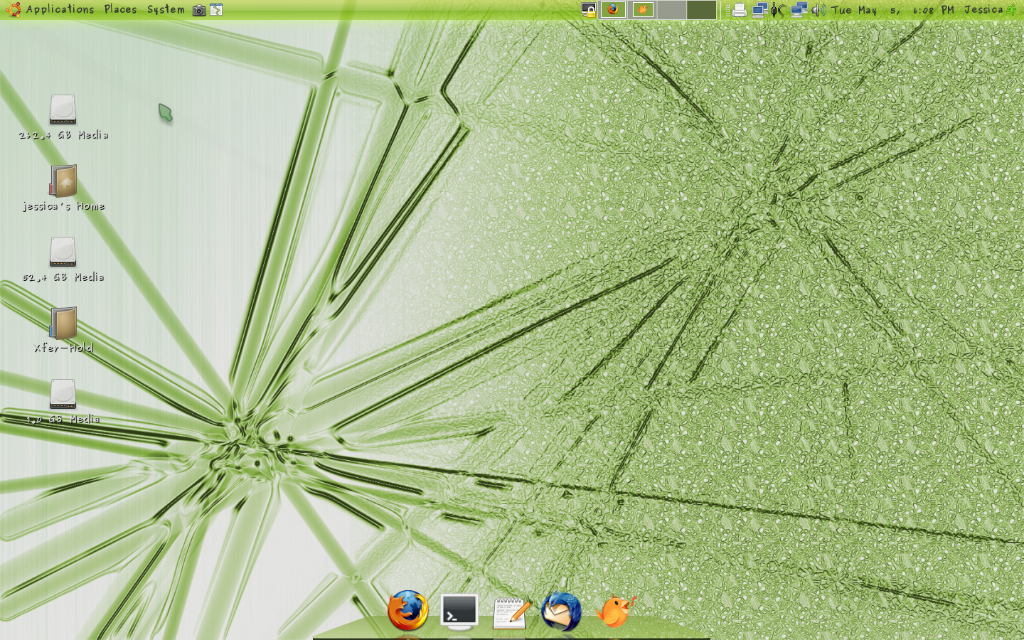
After months of super light (grey & pale yellow) desktops, I’ve embraced color. Maybe re-planting my patio garden spurred this, but I chose a green-theme. And it looks awesome!
Clean:
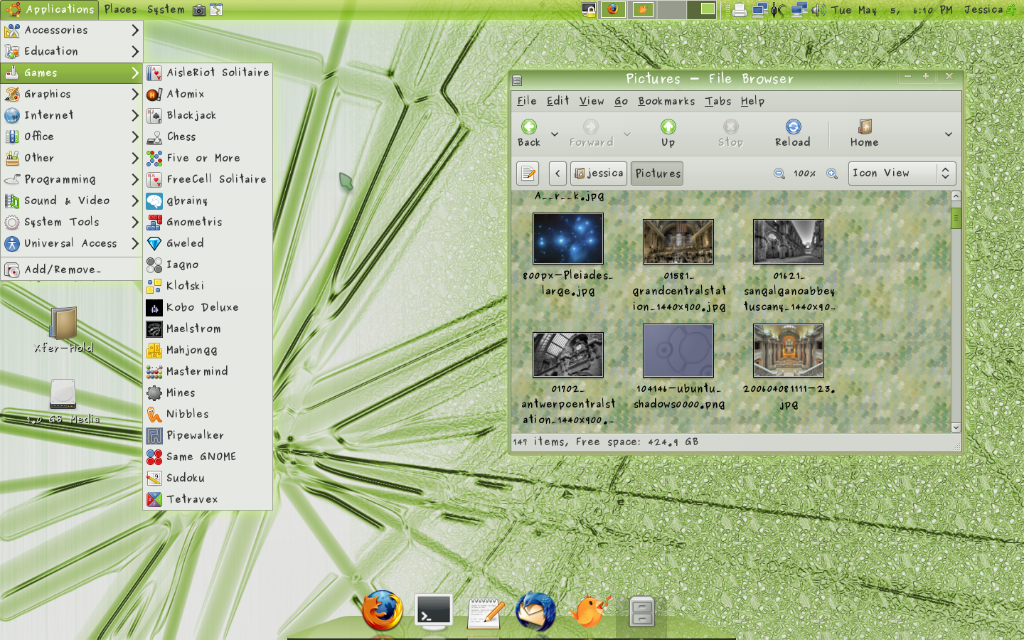
Busy: (the Nautilus background is a borderline to me but it was the best match, even a solid color didn't work as well)
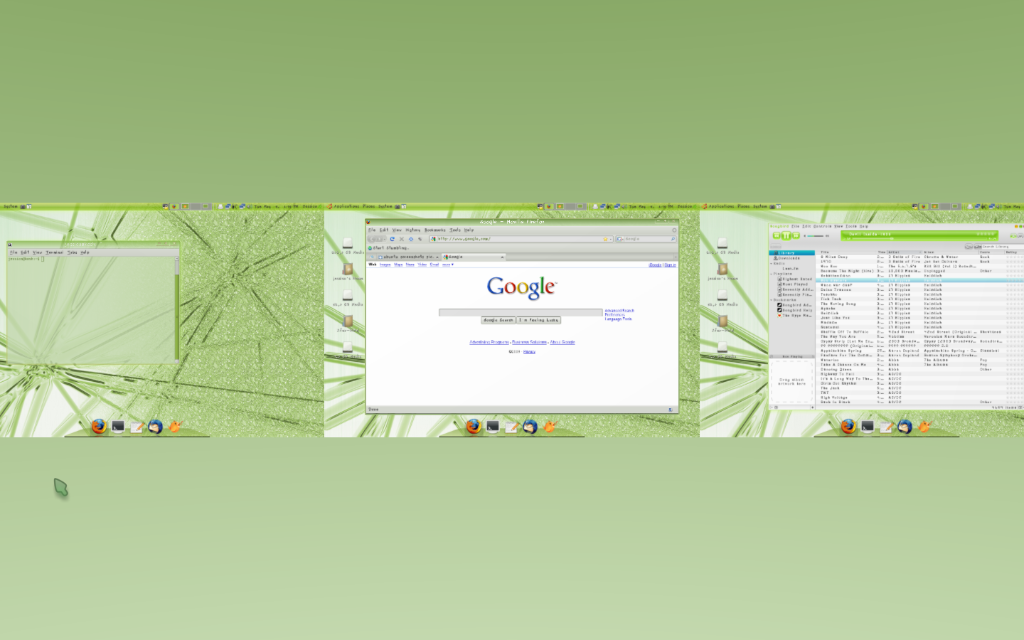
Expo w/ terminal, firefox & songbird:
Details:
Wallpaper – I have no idea where I got it.
Emerald Theme – Fedora Light WEED VER
Controls Theme – (modified so colors match) Clearlooks Mod
Icon Theme – Gion
Firefox Theme – Vista-Nature
Songbird Theme – Euphoria
System Font – Purisa BOLD
Nautilus Background – Green Muted Pattern
Gnome Panel Image – My own creation “Grn-Gloss3”
On a side-note, adding new patterns for Nautilus backgrounds & creating my own panel images are both in the category of “Obscenely Easy Tasks That I’m Embarrassed Took Me This Long To Actually Do”.
Seriously, this is all it took to creating the panel took a whopping 2 minutes using GIMP and that includes saving 3 different panels with different transparencies. The one shown is the one that best matched the rest of my desktop. Still, since installing Ubuntu how many hours have I wasted searching Gnome-Look for the perfect panel when I could have just made one? Clearly I need to develop a more proactive mind-set when it comes to tweaking.
Tuesday, May 5, 2009
May2009 Desktop

Sunday, April 19, 2009
We're Linux (and we're crazy)
Been watching the "We're Linux" ads posted by The Linux Foundation over on YouTube. Some very good stuff. Although it appears a great many Linux users have no problem being just a tiny bit creepy.
Example 1 - For those who always wanted a stalker OS:
Example 2- For the booming super-villain market:
Some more-encouraging videos:
A la TV infomercial of awesomeness
Obscure French Film awesomeness (this is HILARIOUS!)
Aren't these all so much better than trite corporate commercials?
Wednesday, February 25, 2009
Games In Ubuntu
After trying Guitar Hero for the first time last weekend, I was in the mood to try out some new games for Ubuntu. Via the Ubuntu forums, I came across this really fantastic compendium of all things Ubuntu-gaming. With some experimentation and downloading, I ended up trying out several games most of which I really liked.
AssaultCube : I’ve never really been into FPS games but I thought I should have just one. This seemed like the one with the simplest premise (although Tremulous looks awesome) so I chose this one because I figured it would take me a while to get used to playing this type of game. Boy, was I right! I suck at this game. With everything set to easy and in a deathmatch with two measly bots, I never win. I can kill one bot but not the other before it gets me. However, it is fun and while frustrating, it is the kind of frustrating that is enjoyable so I can definitely see myself playing this in the future. My only two gripes are that the default keyboard settings are very awkward and that the only way to open the game is through the command line. The keyboard settings are pretty straightforward to change but you do have to take some time to think about what you should change them to in order to perform certain actions quick enough. The command line thing isn’t so bad; the main annoyance is that it takes 3 commands instead of just 1. I tried automating this but my script wouldn’t run. I’ll have to fix that if I plan on playing this a lot. Which I do.
Frets of Fire : Very disappointing. I can definitely see the potential for the game but, after playing Guitar Hero, it’s just not even in the ballpark in terms of playability and enjoyment. For one thing, the Tutorial to introduce you to the game is incredibly, stupidly condescending. Seriously, there’s no reason for it at all. Also, the F1-F5 keys are incredibly awkward to use as frets. I couldn’t get into it at all. Finally, while I understand an open-source games can’t include copyrighted songs, the included songs were pretty difficult compared to the “Easy” settings for Guitar Hero. I didn’t keep this one on my computer but if there are future improvements, well, I’d have no problem trying again.
Kobo Deluxe : Great space arcade game. The levels are varied and the premise of blowing up stationary objects that are defended works really well. I very much enjoyed this one.
gBrainy : Really good game loaded with logic and math puzzles. It’s not complicated or flashy but the puzzles are engrossing and just hard enough to require something of you. I really enjoyed this one.
Pipewalker : Really cool puzzle game where you have to rotate “piping” in order to connect computers to the network. The randomizing function is just good enough that it is quite difficult but not so much that you don’t believe the puzzle is solvable. The puzzles are pretty hard too. I played for two hours straight and only connected all 20 computers once. Exactly the best kind of game: not easy to win but easy to play. Just a note: This one is available from the repositories so the link is just to a description page.
Other Games On My To-Do List:
Phun – Physics simulator & mechanism creator.
FlightGear – Flight Simulator with tons of different aircraft
Wednesday, October 22, 2008
Old School Desktop
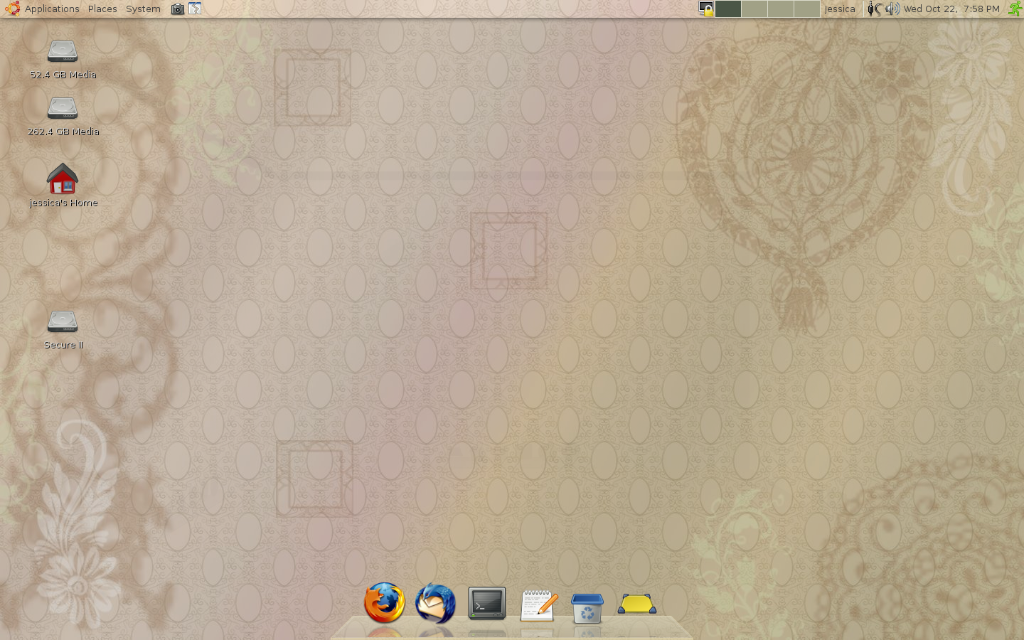
Once again, the Ubuntu forums monthly Desktop thread forces me to step up my game....Using a homemade wallpaper and some new controls/icon themes, I decided to create a yellow-themed desktop as I’d never done one before and figured it would be a bit of a challenge. The final result:
Clean:
Expo:
Wallpaper: “Antiquing” made by me in GIMP with GPL/CC licensed brushes, gradients & patterns
Controls: Zenburn-Murrine
Icons: Foxtrot
AWN Theme: Shotglass modified to match wallpaper colors
Firefox Theme: Default
Thunderbird Theme: Outlook 2003 GreenTB (not shown)
Songbird Theme: Default with “Personas” AddOn reconfigured with wallpaper as background image
(Oops - forgot one!) Emerald Theme: Argilla
*eyes laptop speculatively*

Friday, October 3, 2008
The Big Next Big Ubuntu
I'd never read the release notes for an upcoming version of Ubuntu. Sometimes, the surprise of a new feature is a joy in and of itself. However, I did a quick read through of the notes and there's some pretty cool things on the way.
From improving privacy to little tweaks to the desktop, it sounds like I'm going to enjoy my post-upgrade experience. I can only hope they get flash/sound issues under control. Right now, that's the biggest day-to-day weakness in the system. This problem isn't Ubuntu's fault but the average user doesn't care about the politics of proprietary codecs, they just want to easily switch between playing their music and watching YouTube videos.
Ok, this post isn't intended to be a lecture. Two little things I'm looking forward to trying with the next release"
1) Encrypted Private Directories in your "Home" folder - Very neat idea.
2) "Last Successful Boot Option" - To make it easier to recover from a bad upgrade to the kernel.
Sunday, September 14, 2008
Adventures in Computing
Having spent the greater part of last week and especially the last two days installing Ubuntu, applications and various other things, I've noticed a few things...
1) “Compaq” has terrible user’s manuals! The whole paper manual focuses on troubleshooting which presupposes the use of Windows Vista and recommends sending out for help a lot. The more technical manuals are sent on the HD instead as a printed copy. While I appreciate the stance of putting the user guides on the computer to save paper....That doesn’t exactly help people who don’t plan to ever boot into Windows. The “Acer” laptop I bought came with a better printed manual: system specs, repair tips and troubleshooting that doesn’t presume their customers are half brain-dead. The only problem was they sorta hid BIOS setting info. That is tucked away in other sections which didn’t impress me because the BIOS info was the first and foremost piece of info I needed from the laptop manual. While I’m at it, I’d just like to say the manual for the “Dell” tower that died was always useful. That book was a great example of a thin, well-written instruction guide which informs users of exactly what they need while also giving the tools to learn more.
2) “Acer” makes good laptops but for completely inexplicable reasons they cover their products in stickers! I had one sticker for the wireless brand, two for the processor chip(s?), the “Vista” sticker and a sticker with a list of system specs (which repeated most of the info on the other stickers). You know, if “Acer” put all that on the box instead, I wouldn’t have to spend 30 extremely annoying minutes getting the stickers & glue off the computer with rubbing alcohol and a q-tip.
3) 2Gb of RAM is a noticeable improvement over the 1.5Gb I was used to. With the extra RAM in both the new tower and the laptop, Compiz Fusion really looks amazing. Not to mention, every desktop switch and window opening has a certain “pop” to it.
4) I’m insanely grateful that I took the time before my Japan trip to install Puppy Linux on a USB drive. The OS and the utilities that come with it have been extremely valuable in preparing for the data transfer from the old HD. If it wasn’t for Puppy, I might have had to use Vista for a couple days (shudder). Not to mention, Puppy was the easiest OS install I have ever done. Due to the time constraints to prepare for my trip, I didn’t get the opportunity to tweak Puppy into everything it could be. Still, even the standard install with a couple cosmetic tweaks proved very useful.
5) Having played around with Vista in the store, I can now say: It really does suck. Visually, it’s quite striking. However, Ubuntu has similar visuals so that’s not really a unique selling point (I know it’s likely that Ubuntu was probably influenced by Vista visually and not the other way around). Still, Vista does everything Ubuntu does only in the most annoying and condescending manner possible. While Windows broke down and increased their theming options, they are still pretty tightly controlled. While Vista has lots of settings & menus, it’s still pretty “let me hold your hand while we do this, because changing the color of your windows is so mentally taxing”. With Ubuntu, there’s a lot more control over what’s present and how it is configured without the talking down to the customer. The only area where I would say Windows has an unquestionably good thing going on is the Windows Media Player. After my recent search for a music/media program, I have a newfound appreciation for how WMP combines all music & media tasks in one place. It’s not as configurable as the Ubuntu music applications but it’s also a lot more seamlessly functional.
6) I’d never done a straight-up install of Ubuntu. All my previous experiences were loading it on machines with existing configurations. Since there was nothing fancy required for the laptop, I just wiped the Windows install and put Hardy on instead. The actual install was shockingly easy; it took less than 30 minutes with no errors. The only hard part was getting the laptop to boot off the CD/DVD drive before Vista jumped in and started “configuring”. However, since I have a very specific suite of applications, I wasn’t really done with the set-up(s) until tonight. Here’s a quick summary of what I did post-install on both the laptop & the new tower:
REMOVED: Evolution, Rythymbox (someone made this easier to delete – thanks?)
ADDED: Thunderbird, Compiz Fusion, AWN, Last.FM client, Songbird, Ubuntu Tweak, VLC, gNomad2, several games, Octave, misc small applications & dependency files
TWEAKED: AWN applets/launchers, DVD Playing Firefox Add-ons, Emerald Themes
While I had planned to clone my previous HD, having done a clean install for the laptop I realized how messy (for lack of a better word) my old HD was. As a result, I decided to do a clean install for the new tower also. However, I still need to import some of my personal data from my old HD. This is on hold due a lack of proper cable which will allow my old HD to talk to the new computer.
7) Whatever I say about "Compaq" manuals, their case layout is brilliant. Whoever designed the brackets & cages inside this Presario PC really thought about how people would have to move around and take it apart to upgrade the machine. It was very easy adding my old HD inside the case (if not connecting it). In this respect, the did a much better job than Dell did. It was a complete pain getting my old HD out of the Dell case!
Tuesday, June 24, 2008
Hardy Heron – Full Review
While Gutsy involved some very obvious changes to the desktop, Hardy so far strikes me as a more under-the-hood upgrade. Overall, this resulted in a fairly seamless upgrade with a couple of exceptions. This post was delayed because I didn’t want my (very frustrating) search for a music app to interfere with my review of the upgrade.
See full post for my (few) upgrade problems, things I like about Hardy, things I don’t like and my overall opinion of this upgrade.
I. Upgrade Problems
1) Errors installing Scrollkeeper: Honestly, I have no idea what this means. It about gave me a heart-attack during the install because my computer got stuck on this for several minutes. Here’s what it looks like: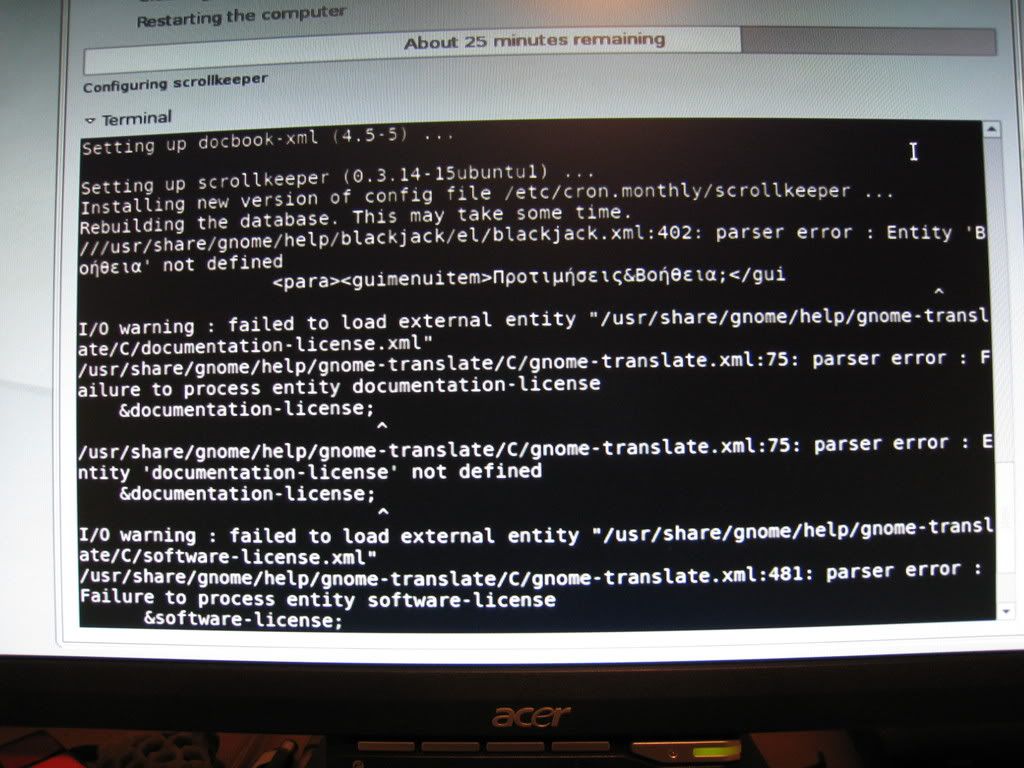
2) Kernel Panic with -18 Kernel: With Gutsy, I had Kernel problems because I was loading an older version without realizing it. With Hardy, the most recent version was the source of my troubles. An older version worked OK (so I could check things out) but it’s best to use the most recent one I think. Many other people have had kernel issues with this upgrade but unfortunately, the fixes can be a bit technical. Here’s what worked for me.
I booted into recovery-mode for the latest kernel. Recovery-mode has undergone some changes. Instead of a terminal, it now goes to a very basic menu. I choose to “Rebuild damaged/broken packages”. Once complete, there's an option to reboot in normal mode. 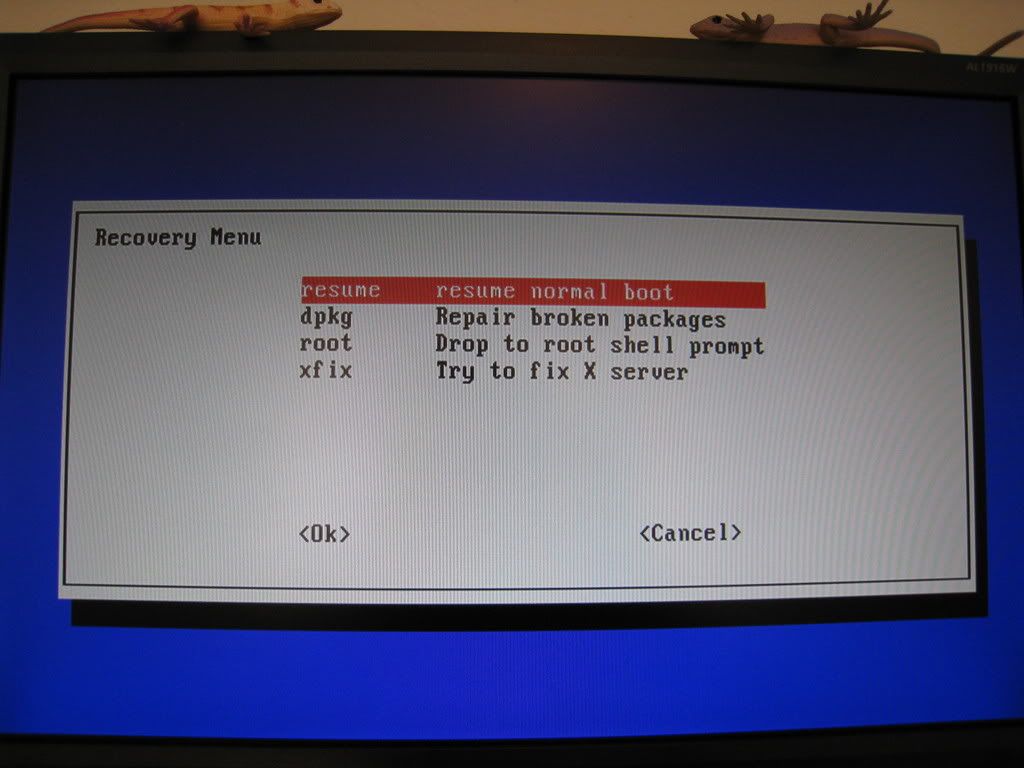
3) PulseAudio Integration: This didn’t appear until very late in the game (after 2wks). Because of my music application difficulty, I guess I may not have noticed it right away. Basically, PulseAudio confuses the computer when two applications (like your music player & your browser) try to use sound at the same time so it just doesn’t play one (usually video sound in your browser). Now I had this exact problem with Gutsy and could never get it fixed. However for Hardy, after some looking around, I found this very helpful guide in the Ubuntu forums. I performed steps A & B, then rebooted. This completely corrected my sound problems. So, bad = there can be sound problems, good = they’re a lot more fixable than in Gutsy.
II. Things I Like In Hardy
1) Streaming Sound WORKS (for the most part): With the exception of the confusion listed above, the improvement to streaming sound functionality is huge. Even before they were fixed, the sound issues were less frequent and pervasive. In Gutsy, it really interfered with my Last.FM app, music player(s), and video streaming. In Hardy, my problems were limited to video streaming and were much more correctable. This is the single most noticeable improvement from Gutsy to Hardy. I know for some people it went the other way around but in my case, Hardy is a dream sound-wise compared to Gutsy. The only other sound issue was with Last.FM. It kept stopping and then buffering the files the first few days. But then I got some software updates and it never happened again.
2) Shorter Boot & Shutdown Times: I have no idea why this would occur or even if it was supposed to. But it is nice, especially when I have to restart after a round of updates.
3) Brasero CD Burner: I do really like this application because since switching to Ubuntu, I’ve been making more data CD’s for back-up programs, etc. Brasero lets you burn several types of CDs and it’s quite intuitive to use. For audio CD’s, creating and rearranging a track-list is dead simple: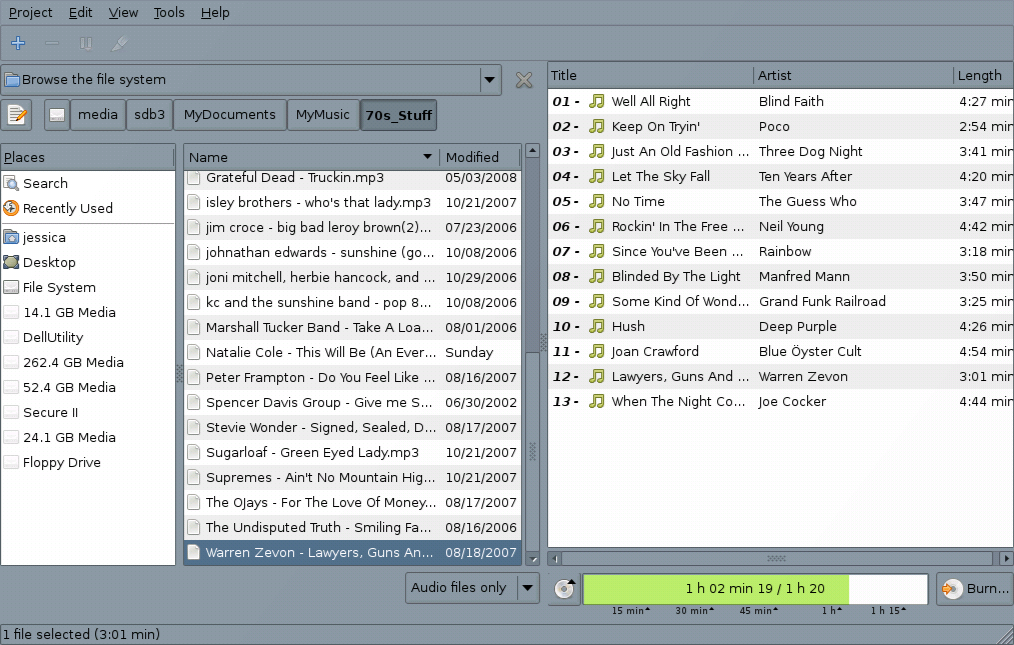
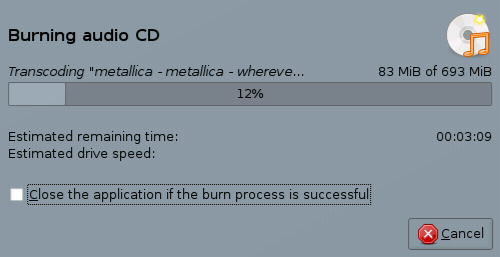
4) A Couple of Little things: Just some minor features that I noticed and liked. (a) Hard drives are labeled by their memory size not their “designation” (ex – sbc3). Much easier to keep track of. (b) This is a tiny change that makes a big difference. The “Control Center” is now available immediately under the system menu: 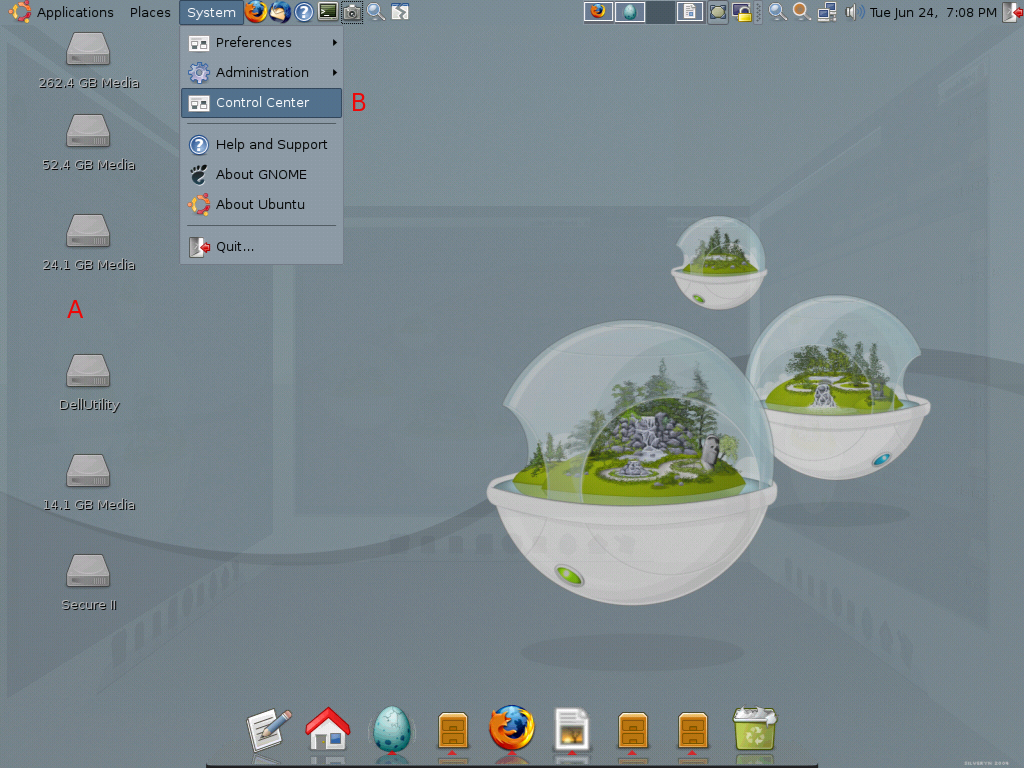
III. Things I Don’t Like In Hardy
1) Start-Up Manager Changes: One of the changes in Gutsy I really liked was the improved “Start-Up Manager” functions. For some reason, those changes have been removed and the “Start Up Manager” greatly simplified (to the point of being useless). Here’s the Gutsy version: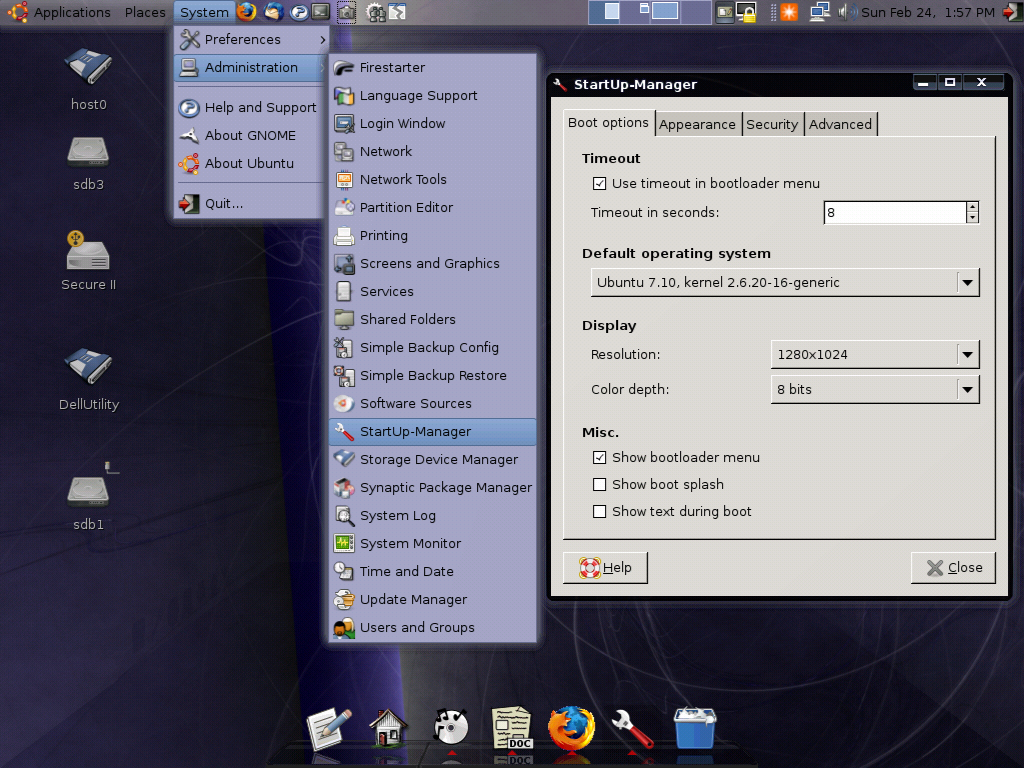
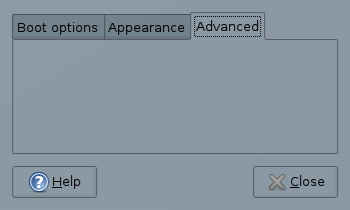
2) Most of My Firefox Themes Were Obsolete: With the Upgrade to Firefox 3, most of my themes just became null & void. A mitigating factor on this is that Firefox will regularly check for updated versions that are compatible so I don’t have to go digging for them myself. Still, Firefox was kinda plain for a while. By the time of the “official” Firefox3 release last week, several themes including Phoneity Modern (my fav), were all upgraded for the latest version.
3) XMMS Is GONE: I’ve already ranted about this here. This was the biggest Hardy downer for me.
IV. Overall Opinions
I actually like Hardy. Again most of the changes are either less noticeable than Gutsy or involve things I don’t use. But for the things I do use and see, this was a good, relatively glitch-free upgrade. After reading the forums, I was really worried about making my sound troubles worse and Firefox 3 being buggy. For whatever reason, they didn’t come up during my upgrade. For the most part, Hardy is a great deal more stable than Gutsy for me. The most significant change is the lack of XMMS (which I’m certain I will get over...eventually).
Thursday, June 19, 2008
The Great Music App Search
My long-promised Hardy Heron review has been delayed in my search for a new music application. I’ve tried just about everything available at this point and I’m quite surprised it took this long to find a player. Note: I did not find a “player I like as much as XMMS” but rather “one that works well”.
See full post for a recounting of my slightly disgruntled examination of music applications.
Goddammit. Why no XMMS? Really. What’s so wrong with a really simple music player whose appearance I can change? I know, after my Rythymbox woes, I decided to search around for something else after the Hardy upgrade. But this is a forced change...I don’t react well to forced changes. I went through a crazy number of players until I found something that actually did the one or two functions I need in a music player in a way that didn’t annoy the ever-loving heck out of me. Here’s a summary of my music player adventures:
Aqualung: Didn’t work AT ALL. As in, didn’t even open. No link for you.
Audacious: Opened and allowed me to load my library as a playlist but didn’t play AT ALL. No link for you either.
BMPx: Opened and very feature rich but easy to navigate interface...With one key exception...You cannot load your entire library as a playlist. This is for some complicated technical reasons but frankly, I don’t care.
Amarok: Opened, loaded library as playlist and played. However, it was slightly buggy sound. Occasionally it would fritz out entirely and I’d have to tweak some preferences to get it playing again. Also, there are too many features in this program! It felt like I was using a 100-function Swiss Army knife to chop celery.
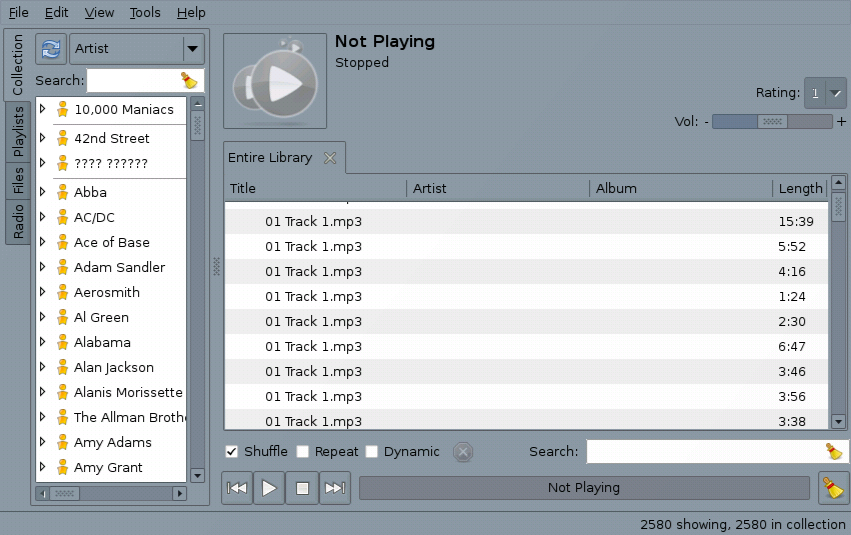
Exaile: I had high hopes for this one. Opened, loaded library and played music with no problems. Much fewer features and a less cluttered interface than Amarok (even though its supposed to be an Amarok clone for GNOME):
Unfortunately, Exaile has one key flaw: a terrible, horrible tag generator/editor. It imported a lot of my filenames as “Titles” instead of the actual tags. This isn’t a few files. It’s 1000+ of 2600 files. Which is a ridiculous amount of work. Not to mention, the tags menu is useless.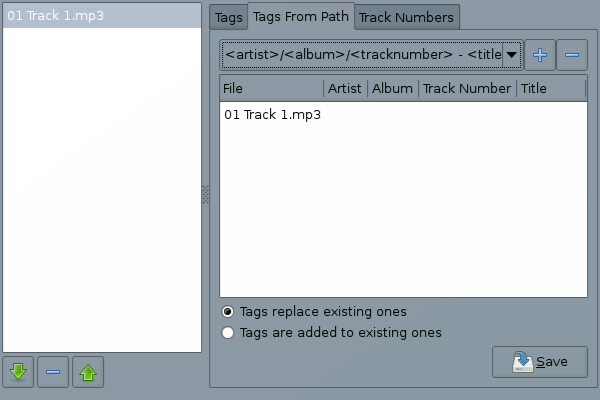
Banshee: Opened, loaded library & played. No bugs. One key thing some people may not be aware of: The version of Banshee available through “Add/Remove...” is not the latest (indeed that version kinda sucks). To get the latest version, open “System”—“Administration” – “Software Sources”. Under the “Third Party Software” tab add the following two entires: deb http://ppa.launchpad.net/banshee-team/ubuntu hardy main
Then open up your terminal and type the following:
deb-src http://ppa.launchpad.net/banshee-team/ubuntu hardy mainsudo apt-get install banshee-1
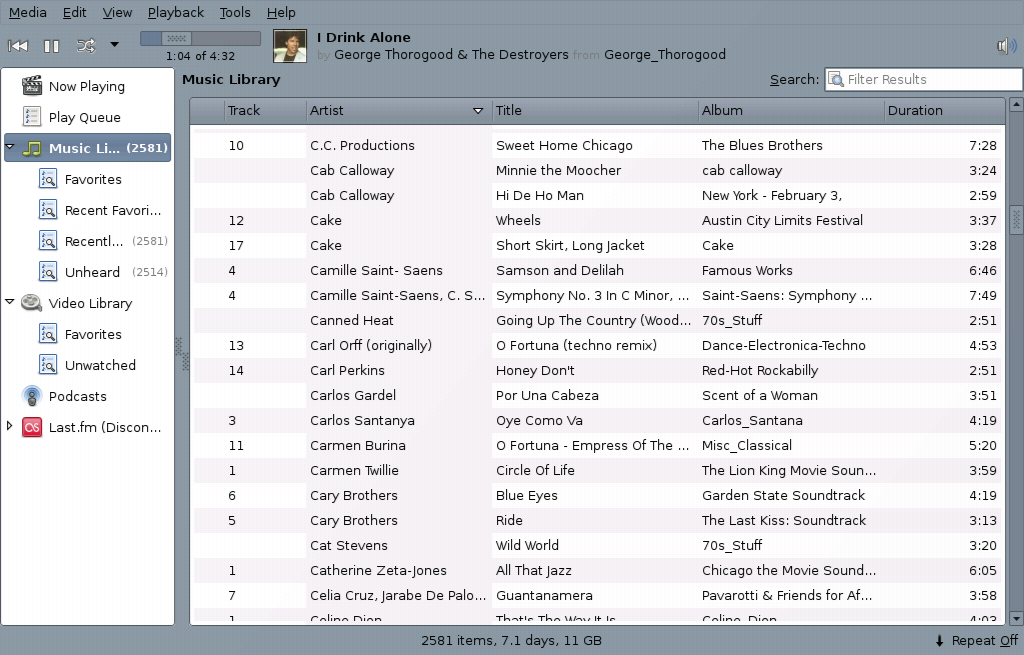
This version of banshee has Last.FM compatibility but it doesn’t let you play “Friends” or “Neighbors” only similar artists to stuff you’ve already played. Still, it’s good to finally have something decent to play music:
There’s still a major tagging problem, where some of my general folder names (“70s Stuff”, “Musicals”) are being loaded as album names. Also, the “Download Album Art” feature is especially irksome. Thank god they at least give me the option to turn it off. But I have to turn it off each time I open the program, yuck. Is there nothing better?
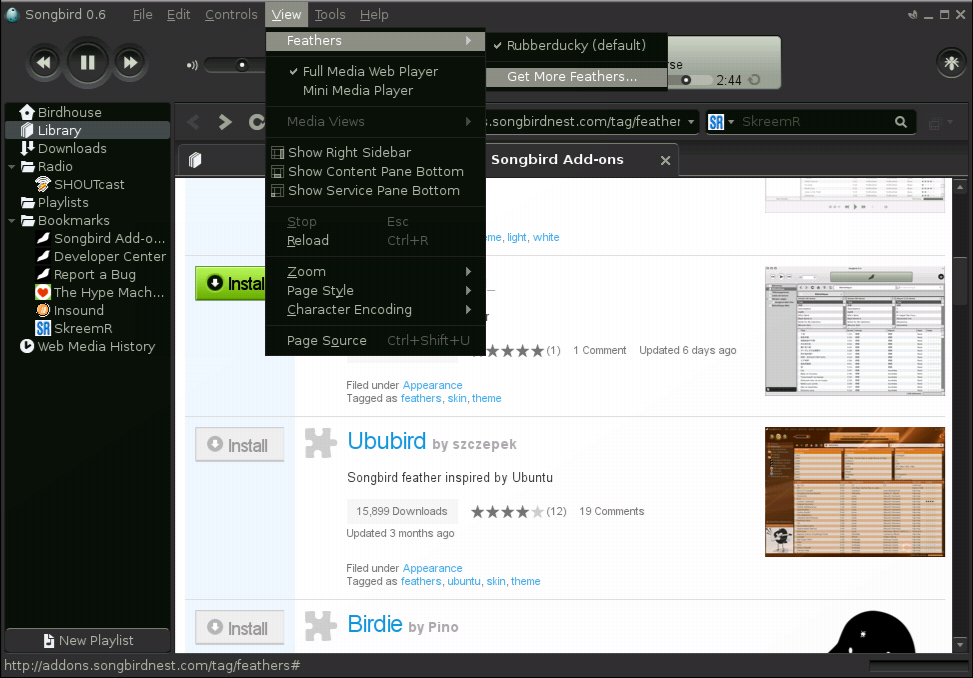
Songbird: FINALLY. It looks complicated but this sucker does exactly what I want. Opened, loaded music library and played. This one requires an install similar to Banshee. Add the following to "Third Party Sources":deb http://ppa.launchpad.net/fta/ubuntu hardy main
Then run the following from the command line:
deb-src http://ppa.launchpad.net/fta/ubuntu hardy mainsudo apt-get install songbird
When you first open the program,you select a folder and it automatically loads your library, first thing! I had a moment of "Oh not again!" panic when the library first loaded. The tags don't fill in until you play the tracks!
Meaning.....I do not have to re-input tag data. EVER. Between this and the (thankful) lack of automatic "Download Album Art" feature, I'm officially SOLD on this player. There's also an add-on that allows for audio-scobbling via Last.FM.
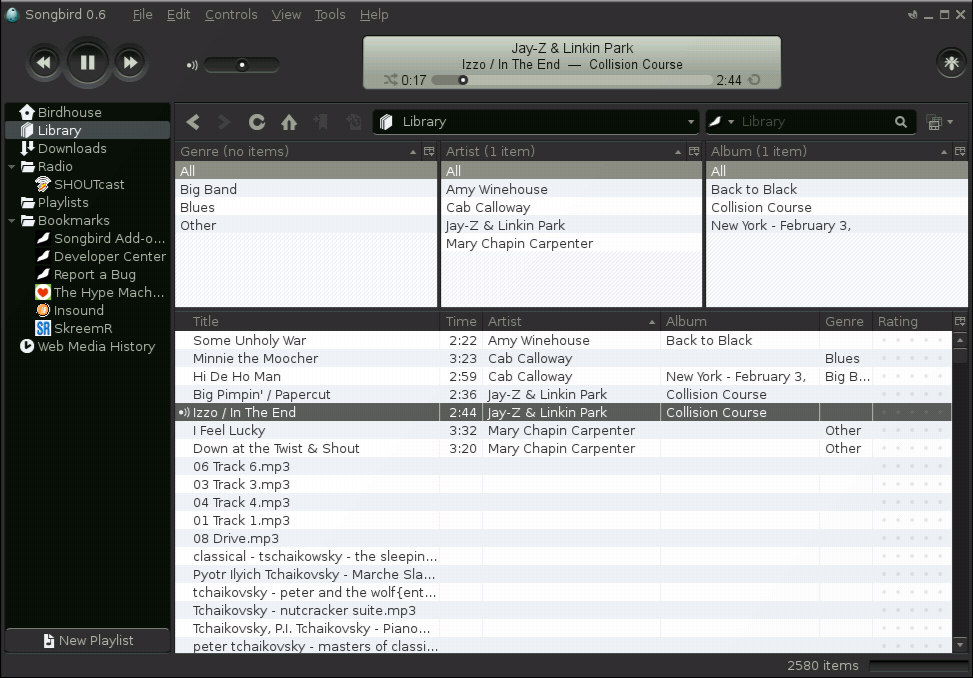
Although the default theme is really dark, installing different themes is as easy as in Firefox. (They are called "Feathers" here)
Right now, I'm running a nice light green/gray theme to go with my desktop a bit better.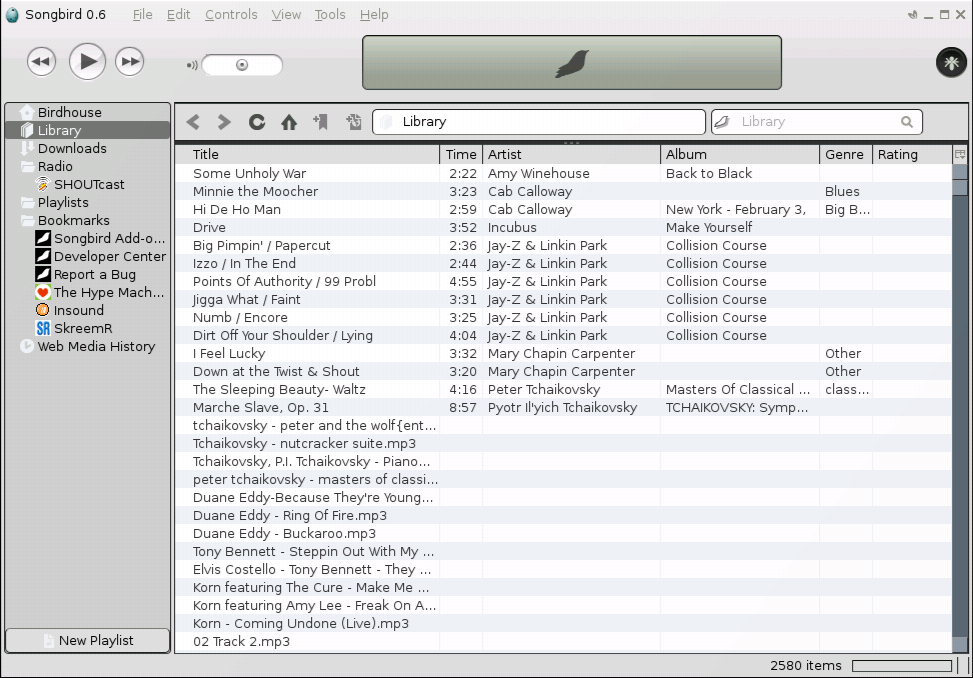
Now, after all this searching and frustration, I would like to get on my soapbox a little. Please ignore the following....
(/Begin rant)
For all their so-called variety, the music players available in Ubuntu aren’t very satisfactory to me. I understand a lot of people have very strong favorable opinions of these players but, for me personally, they seriously underwhelm. They all look the same and while they let you do complicated things, there’s very little emphasis placed on making simple actions simple. 97% of the time, I do one thing with a music player: load my library as a playlist, hit “shuffle” and play. That’s it.
BMPx considers this unnecessary; Amarok worked but was buggy and the other features just overwhelmed (who needs all that crap?). Exaile had the worst tag editor in the history of mankind. Don’t even get me started on Rythymbox. Simpler players such as Audacious and Aqualung didn’t work at all. I’ve gotten to the point where I see that oh-so-recognizable style of interface and cringe. Because it means that this player will be a complicated chore to use. I was even reluctant to try Songbird simply because its similarities. Thankfully, while it has plenty of fancier features, it's very easy to use and doesn't require a lot of work on my part.
(*deep cleansing breaths* End rant\)
Now that I have a player that shows songs with correct tags, I can now complete my cross-reference between my music collection and my MP3 player. Once I’ve correctly synced my files, I’m going to go on a celebratory music-buying spree like you would not believe. Amazon Downloads better brace themselves....
Monday, June 2, 2008
Hardy Heron Update - Initial Review
WAAAAYY Better than Gutsy for one reason alone.....My streaming media sound works flawlessly! It quit working about a month ago in Gutsy and I put off updating until I could get it worked out. Glad I didn't wait any longer. Hello YouTube! *waves* Hello Last.Fm! *hugs* I've missed you both!
*intends to stay up waaaay too late watching "Britain's Got Talent!" on YouTube*
(more detailed review to follow)
Thursday, May 29, 2008
My Latest & Greatest Desktop
It has been a LONG while since one of these! That's a shame because I've been really enjoying playing around with the Compiz settings in Gutsy Gibbon. Here's now:
Wallpaper:The_Lost_Gardens by silveryn
Emerald Theme: Blue Satin (HEAVILY modified to match desktop so no link)
Icons: Tango (Unofficial)
Controls: Industrial
Also, I finally figured out how to take screenshots of some of the Compiz effects. The built-in Compiz "screenshot" function has never worked for me after much fiddling. This was incredibly simple once I thought about it. I just used the regular built-in screenshot tool with a 6-8 seconds delay, just enough so I could activate the effect.
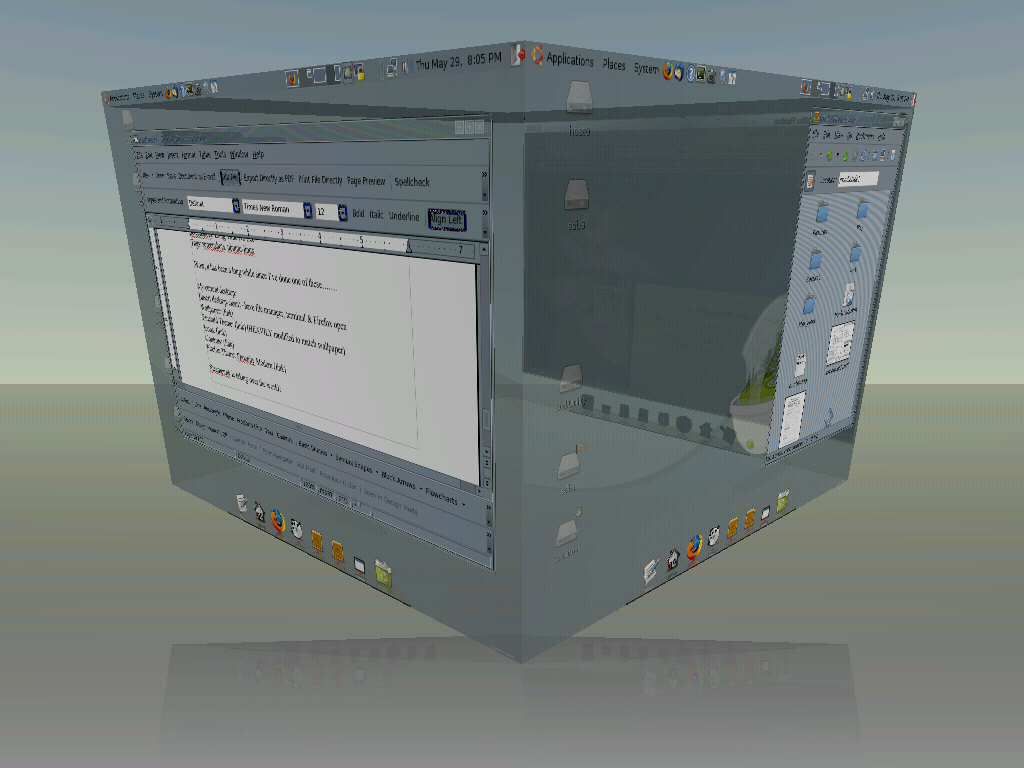
My cube (can you tell I'm lovin' the transparency options?)
Very pretty but it's not as useful as the "Expo" function. Just press CTRL+ALT+DOWN to easily switch between desktops, like so:


Friday, April 18, 2008
The Great Rhythmbox Meltdown of 2008: After-Action Report
In addition to rebuilding my mp3 library, a fair portion of the last week has been dedicated to determining what exactly caused Rhythmbox to crash and how to correct my unfortunate mis-clicking with led to most of my music files ending up in the Trash bin (and overloading said bin). I will admit my aversion to Rhythmbox made me lose my cool when the problem first appeared and that greatly contributed to the scale of the problems. I thought this warranted a post because this problem was by far the most pervasive issue I’ve had with Ubuntu so far and solving it has/will required me to really consider different approaches to the problem(s).
See full post for my problems, the solutions and some future actions on my part to improve the situation.
I. Problems
Overall, I have three problems that started with the first one and got progressively worse:
1) Rhythmbox began importing non-music files from places NOT in the selected “Import” folder: For some reason, it began importing files from the Windows partition of my internal drive (totally separate drive and partition from the import folder). It just kept adding non-music files at such a rate that removing them didn’t really do any good and it slowed Rhythmbox to a crawl.
I decided to remove everything from my music library and start over. Unfortunately, I clicked “Delete” (send to trash) by mistake. This promptly sent ~2000 music files to Trash before I could initiate the “Force-Quit” for Rhythmbox (which was the only thing which stopped the transfer). Apparently, 1980 mp3 files are too much for Trash which led to my second problem.....
2) When “Trash” got overwhelmed it messed up Nautilus: Which makes some sense, since you access Trash through Nautilus. First of all, I transferred all the files out of Trash and placed them in a “Holding” folder I created for files that needed to be filed later. Once Trash was cleaned out, it recovered well. However, transferring the music files back into my library has slowed down because every so often Nautilus gives me errors when accessing my external HD.
When these messages occur, if I attempt to close and reopen windows to the same files locations, Nautilus doesn’t allow me to. Sometimes if I wait a while, I can access the files and sometimes, I need to restart my computer to regain access. The system logs don’t reveal anything out of the ordinary (error messages, etc).
3) I was getting a lot of glitches in various places: From just browsing my desktop to updating my system, it’s sluggish and prone to freezing up. None of this was occurring before and now, I can’t seem to get away from it. There’s no one thing just a general bugginess. This is quite frustrating.
II. Solutions
1) Rhythmbox was actually the easiest to fix in a way. I never liked the program and only started using it because the no-longer supported XMMS caused sound-card problems in Gutsy. I attempted a couple of times to reopen Rhythmbox in order to see if I could prevent it from importing non-music files in such great numbers...I had no success at all. I also have no idea why Rhythmbox would be retrieving files from a totally separate partition from the import folder shown under “Preferences”!
After some digging, I found I was not alone in having this problem. Unfortunately, none of these posts revealed a solution to the problem. Finally, I just removed Rhythmbox from my machine. I was worried the “Add/Remove” application would tell me I had to do it in Synaptic due to dependencies. However, it was not necessary at all; a few mouse-clicks and this frackin’ app was GONE. I’m currently giving other music players a try but haven’t decided on a replacement just yet.
2) Correcting the Nautilus issues was a great deal trickier. My main problem is that when I try to cut-and-paste the music files back into my library folders, after about 20-50 files Nautilus crashes. I cannot restart Nautilus (for any purpose) usually unless I restart my computer. Thankfully, I can still see the files when maneuvering from the terminal so I know they haven’t been erased or anything.
But I can’t move them from within the terminal because most of the music files have spaces in the files names which the terminal does not recognize. For example:mv 01 Black Tambourine.mp3 /media/sdb3/MyMusic/Beck/
Doesn’t work because the computer thinks I’m trying to move 3 separate files: “01”, “Black” and “Tambourine.mp3”. Eventually, if I plan to use terminal more often I will need to convert the file names to have underscores (_) instead of spaces. This will be incredibly tedious for 2500+ files so obviously, I’m not doing it right now.
Fortunately, I’m not completely without options regarding the terminal. Opening Nautilus in root appears to work quite well. To do this, use the below command & provide password when prompted:gksudo nautilus
Now, Nautilus still crashes after so many files but (1) the terminal displays error messages so I can get some idea of the problem and (2) root-Nautilus can simply be re-launched without reboot of the computer. Unfortunately, I got a bad case of tunnel vision and started relaunching root-Nautilus in order to rebuild my music library; this probably wasn't a good idea and I would recommend to anyone else to correct the problem so you don't have to use root-Nautilus (which is a bit dangerous)....
At this point, my problem is...”case 17 (too many open files)”. This error has occurred for other users: See here & here. It appears to only effect single cut-&-paste actions for music files. When moving a large group of files all at once, it doesn't cause a problem.
In the second link, there's a comment that describes the problem in technical terms I only vaguely understand but recommends installing the following package:pulseaudio-esound-compat
The comment also provides a rather complicated command-line means of monitoring Nautilus to see if you're developing this problem.
Another comment mentioned opening a Nautilus window then going to the Edit-->Preferences-->Preview menu. For "Sound Preview" select "Never".
After I did both actions I resumed cutting-and-pasting to see what happened....IT WORKED! I moved 140+ files with no errors at all.
(Before I found these fixes, I performed some memory & disk checks; the results were inconsistent so I'm probably going to have to investigate that issue further.)
3) Miscellaneous Glitches. Interestingly greatly decreased once I removed Rhythmbox. It completely disappeared after I fixed Nautilus; apparently, it was using up memory trying to "preview" all those sound files. I have no idea why but I’ll be on the lookout for it reappearing.
III. Future Actions
This begins and ends with the most obvious failing: Human error. What could have been a Rhythmbox-only problem was greatly compounded by my poor reaction and subsequent mis-clicking on “Delete” instead of “Remove from Library” in Rhythmbox. While I’m really angry at myself about the panicking, it appears I’m not alone in making this mistake.
In the future, I need to be more careful about knowing which actions are irreversible and controlling my cursor better to I don’t accidentally initiate said irreversible actions. Also, I need to kill malfunctioning processes quicker. If I had killed Rhythmbox sooner, it would have transferred less music files and potentially not crashed my Trash folder.
I think this time I'll do some serious shopping around before selecting a music player for my desktop. In addition, I need to give a higher priority toward renaming my music files so they can be easily manipulated from the terminal. Also, I noticed that I somehow have 300 more music files on my portable mp3 player than I have in my music library. I have no idea how that’s possible as every song is saved on my computer before transferring to the player but it looks like I need to do a detailed review of all the files to see what’s going on there.
And finally, I need to figure out why my disk checks got sometimes passed and sometimes didn't. It might be a sign of a drive failure or memory wipe to come so I can't let it wait too long...
Sunday, February 24, 2008
Update To Gutsy Gibbon Ubuntu 7.10
Last Sunday night, I backed up my computer and performed the update to Gutsy Gibbon. Overall, the update process was very easy. I had one slight problem upon re-start but that didn’t take long to figure out.
I purposely held on this post using this week to play around with Gutsy, correct any problems and develop some opinions. Full post includes: Problems with the Install, Things I Like About Gutsy, Things I Miss About Feisty and Overall Opinion....
I. Problems With The Install
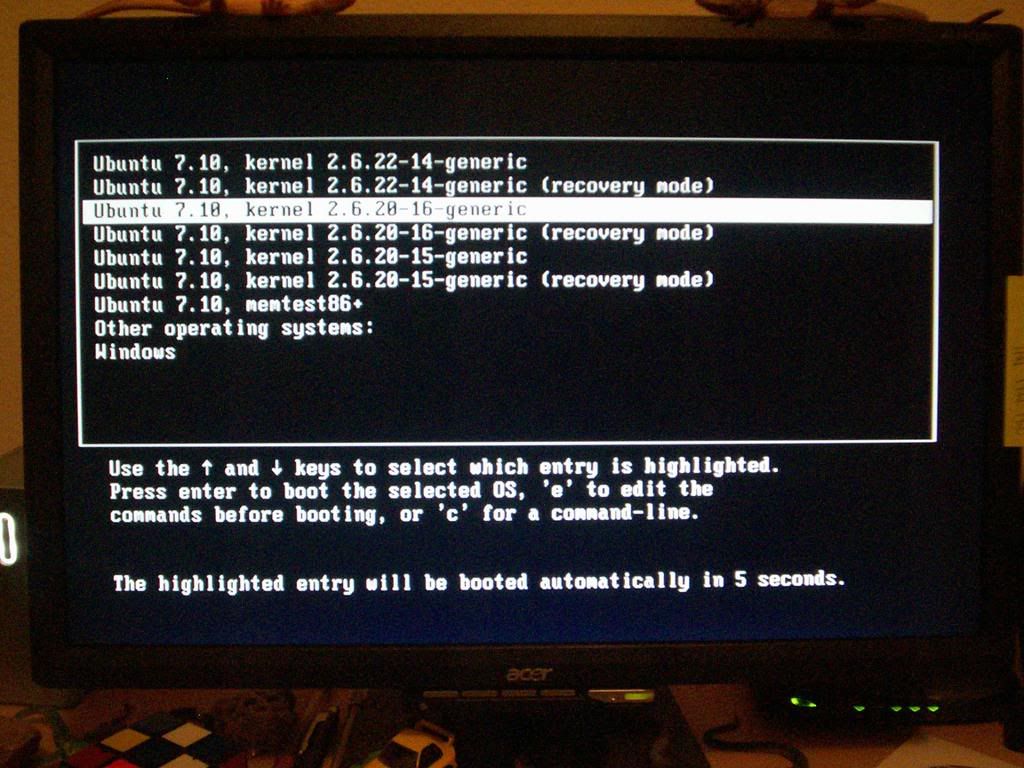
Restart Issue: The Ubuntu Bootloader automatically selects the first choice in it’s menu. However, this is NOT the latest install. Below is a pic of the selections:
Ubuntu 7.10 + version 14 or 15 = Kernel Panic, use version 16 (highlighted). This was pretty easy to fix. Gutsy has a “Start-up Manager” that lets you edit the boot process. I changed the default and did some other tweaking to shorten boot time.
"Undefined Mode Number"?: I got this error message during the boot process. It never prevented boot-up but well, it was disconcerting to say the least. It appears the problem is somewhat common and can be fixed. I found these very helpful instructions. It took less than two minutes to correct (five if you count rebooting to verify the fix).
Did Not Mount My External HD: Thankfully, Gutsy has a new menu option called “Storage Device Manager” where you can correct this.
If that doesn’t work there’s always GParted which will also allow you to mount other hard drives. However, Gutsy still has trouble during boot-up. Gutsy assigns the partitions on the external drive different designations each boot-up (which is particularly annoying for linking to my music library). Also, it automatically loads the Dell Utility folder for disk partitioning – WHY? I have no idea. Usually, this only opens if I open the partition editor application. None of these prevent me from accessing my data. I just have to spend a bit each boot-up figuring out where my computer’s establishing the links to my data. Still, annoying....
Will Not Recognize My Flash Drive: Initially, Gutsy acts like its not even there! It shows up under “Storage Device Manager” when hot-plugged but I can’t mount through there. There’s also a discrepancy between filesystems. GParted identified my flash drive (correctly) as fat32 whereas “Storage Device Manager” says it is ntfs.
In order to access the flash drive, I have to go into GParted and manually mount it. However, it still doesn’t appear on the “Places” menu or my Desktop. The only way I can open files is to create a launcher. Also, it does something funny to my user privileges. I don't have read-write privileges for the drive. I've tried changing the user settings several different ways and none have worked. It's my biggest open issue right now.
UPDATED 2/26/2008: FIXED!!! After a couple hours of dedicated troubleshooting tonight. Solution that worked for me was opening the 'fstab' file and editing it. Command to open file:sudo gedit /etc/fstab
Go to the line that lists your usb drive (it should have a line even if it's not mounting correctly). Make sure your file system is correct (mine was nfts instead of vfat). Add the following after the file system designation:
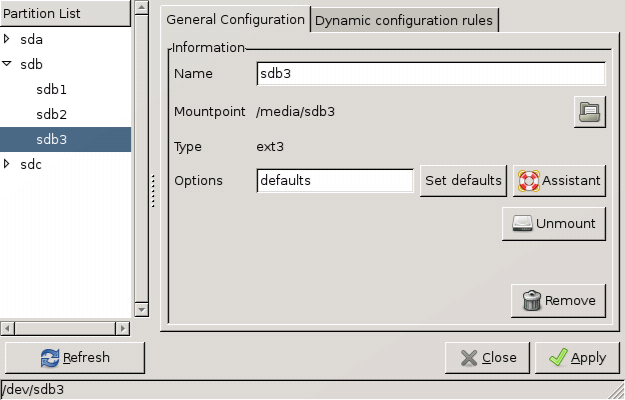

noauto,users,rw,umask=0 0 0From this post.
If that doesn't work for you, go through this thread on the forums. Many possible fixes are listed; there's no real pattern on what works for whom so it's well worth it to try several things. It appears this is a bug with the gnome-mount application (hal?) and is fairly prevalent.
MIRO did not play videos: This replacement for Democracy player initially did not play a single video of any type. Thankfully though, I came across this thread in the Ubuntu help forums which recommends the installation of the “libxine1-ffmpeg” package. One command line later:
Sudo apt-get install libxine1-ffmpegAnd I could play videos with no problems. Before I found the thread, I installed the VLC multimedia player. It’s quite good. They allow you to do some nice modifications to the images as the video plays. I think I’ll keep it as a backup as Miro appears to be a bit buggy for me.
II. Things I Like About Gutsy
Integrated Theme Management: While I loved the versatility of Ubuntu themes, the settings were scattered over several menus (background, windows/controls, etc). Gutsy puts all of that under one tabbed menu:
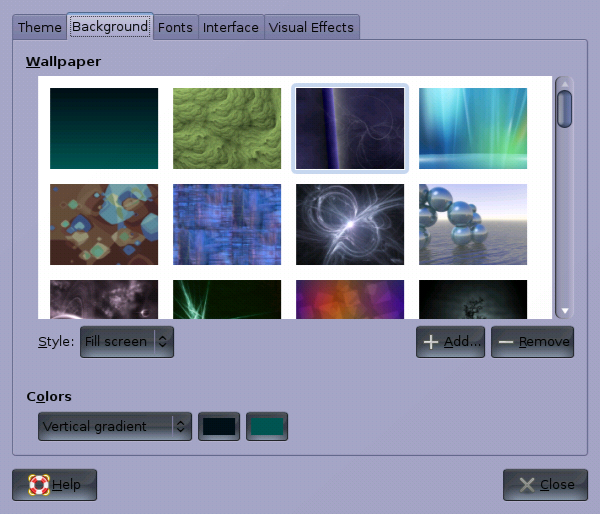
Very handy.
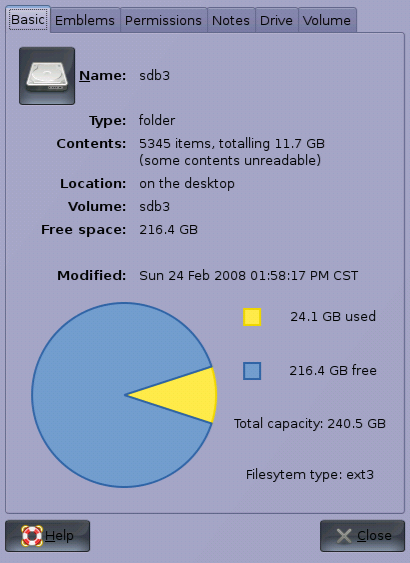
Expanded Property Tabs for Disk Places: I noticed this during my troubles with the external HD and flash drive. It’s not much of a change but I like it.
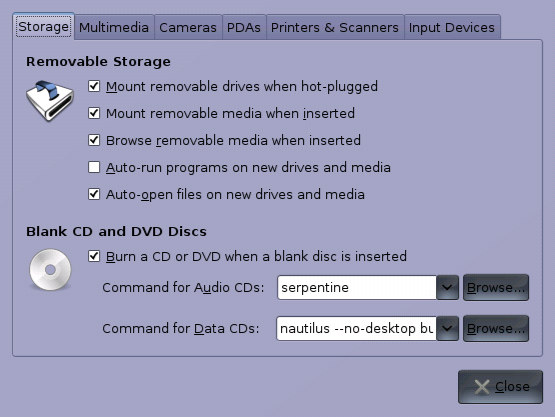
Removable Storage Devices Menu: This may have been under Feisty and I missed it. Although it couldn’t help me with my flash drive issues, I really liked that you can set the standard actions for various plug-in devices. Easy to use and covers a good selection of devices.
Compiz Replacing Beryl: While I loved Beryl, the thing I loved best was the emerald theme manager. Compiz lets me keep that without the really counterintuitive Beryl settings manager that I didn’t really use. Compiz can be activated under the Desktop Theme Menu and there’s an option for medium-performance computers (like mine). Also, if you get the Compiz settings manager, it is worlds better than the Beryl one. Very intuitive and what everything does is very clear. You can get it via a single command:
Sudo apt-get install compiz-settings-managerOverall, Compiz is much simpler than Beryl while also possessing tons of features so I can understand why this was chosen for beginning users. You can probably expect a Compiz-dedicated post sometime in the future as I play around with the settings and embedded screenshot function.
Re-Install Adant Windows Navigator: Original version was for Feisty only (removed during update). I reinstalled it in a very painless process and it came with the elusive extras package I hadn’t been able to install in Feisty. The end result is a more versatile docking platform. Also, it’s a bit more responsive in Gutsy which is good when I’m switching between windows on different desktops.
Gjeweled has NO Music: While I love this game, it was kinda annoying to turn off my music every time I opened the application. The soundtrack was just this looping techno-sounding jingle but it interfered with regular music, sometimes really confusing both myself and my speakers. It’s a nice little tweak that I appreciate.
III. Things I Miss About Feisty
Having XMMS as a Launcher in AWN: For some reason, I am no longer allowed to do this. The AWN manager allows me to fill in the launcher creation form but no launcher appears in either the menu or on the actual AWN dock. At least, AWN allowed me change the icon for an open Xmms window; the default icon is not scalable and quite ugly.
IV. Overall Opinion
Satisfactory. I had too many issues for me to call Gutsy “Great” but there are several improvements that I appreciate and can see real value-added in. The problems with recognizing USB/flash drives are significant enough that I hope they correct it for Hardy Heron. In the absence of those problems, I likely would be going with “Great”.
Next up, resizing my Ubuntu partition! Windows wouldn’t let me shrink its partition during my permanent install so I’ve cleaned that section up a bit. It makes no sense that Windows is two-thirds of my HD and I only use it once every six months (less if I can help it).
Link to full post.
Sunday, January 27, 2008
Computer Booting Issues - Resolved *fingers crossed*
With all my traveling lately, I’ve been turning my computer on and off more often than usual. And it was not working correctly. Somehow, my computer was confusing itself during boot-up. It started out fine but after the “Choose Your OS” screen, I think it was attempting to load both the official install of Ubuntu and the Wubi install at the same time. Which of course doesn’t work and the computer just stops at a blank screen right before the Ubuntu log-on screen. I did leave Wubi on my Windows partition for longer than is probably a good idea (Basically, I hadn’t even thought about my Windows partition since the permanent install and then realized that I had to go in an remove Wubi).
The only way I could get to the log-on screen was to either log into Windows or the Ubuntu-recovery mode and then restart the computer. I have no idea why this worked. I even performed the 'memtest' option available at start-up and found nothing wrong.
I’m a little baffled as to what was going on or why. In general, I try to avoid messing with booting procedures mainly because I know I don’t know enough to risk it. However, during the Wubi and real Ubuntu installs, the booting procedures were modified. I vaguely remember some mention that Wubi uses the Windows boot program but an official Ubuntu install uses another bootloader called GRUB. Maybe they were contradicting one another somehow?
This weekend, I finally broke down and used a program called SuperGrub to repair the booting process. The Ubuntu process is now fine. I can't even get it stuck now if I try. However, Windows is still going to the Wubi "Choose Your OS" page before moving on the Windows start-up. Maybe in order to remove it, I have to uninstall Wubi as opposed to simply deleting it? I found the SuperGrub program via the Ubuntu help forums and I have to say, it's a nifty little tool. I was very hesitant to mess with the bootloader but you have the option to load it "With Help" which basically means for every menu they list all the options and explain what they do. I thought it quite handy.
This wasn’t preventing me from using my computer...I just found it annoying and unsettling. Not to mention, I didn’t want to update to Gutsy (per my 2008 PE Goals) until I got it resolved. *Whew*
Wednesday, January 2, 2008
2007 Personal Enrichment Goals
I decided to take a blogging break pretty much the last half of December. Now that 2007 is over and done...How did I do with my personal enrichment goals for the year (listed here)? Here’s the run down.
1) More Charity Work – FAIL. The point of this was to perform charity work in addition to financial donations. While my donations increased this year, I only performed one act of charity and that was the 5K Susan G. Komen Walk back in April.
2) Switch to Ubuntu – DONE. Very successful and a really enjoyable experience. I’ll be building on this further in 2008.
3) Take a Self-Defense Class – DONE (plus bonus). I completed a 6-week Krav-Maga course. Posts on the classes are here, here, here and here. In addition, I joined the gym that provides the classes.
4) UnClutter Apartment – DONE (partial). Most progress has been made in cleaning out my closet, re-organizing my physical/computer files, keeping my desk(s) tidy and cleaning (slightly) more frequently. I even managed at some point to dust (well, vacuum) my baseboards. Unfortunately, I ended the year behind on my cleaning so no full credit.
5) Start a Weblog – DONE. In addition to creating the blog, I’ve actually managed to do a few minor improvements and get pretty consistent at posting. I’m especially proud of the recent reduction in link-posts. I generally do these when I don’t have anything else to write about so a reduction means I’m generating more of my own content.
6) Be More Sociable – FAIL. This was an effort to be more social. Options were either an Astronomy or a shooting club. A visit to the SA area astro-group did not inspire and I’m not really ready for a shooting group. I get some partial credit for joining a gym and commenting more often on other people’s weblogs.
7) Take 1-2 Classes – FAIL. I signed up for a First Aid class. Unfortunately, it got postponed and rescheduled to conflict with my self-defense class. This will be on the 2008 list.
8) Re-plant Patio Garden – DONE. After months of neglect, I replanted last Spring. The garden is currently in extreme under-watering mode to avoid frost damage. I found that skipping watering or doing it very little helps protect some plants during a freeze. But I just did a litte bit of pulling and rearranging the patio.
9) Digital Photo Improvement – DONE. This was my sole add-on goal (added after writing the list). I’ve been taking a great deal more pictures (evidence in my PhotoBucket page). Also, they’re getting better. Still room for improvement.
The 2007 list was about half-completed (some items I didn’t list on this blog). Some of the incomplete items were due to too general/specific or discovered they weren't feasible (for instance – I had “teach myself Matlab” until I learned how friggin expensive a Matlab license was). Honestly, I consider 2007 a practice year. Part of this year’s list was convincing myself that a list of personal enrichment goals was feasible and something I would do. Both points are well-proven. The 2008 goals will be much more ambitious and (hopefully) with less flaws than the 2007 list.
Sometime in the next couple days, I'll post my (much more ambitious and kinda scary) 2008 Personal Enrichment Goals.
Thursday, December 13, 2007
Ubuntu And Women
I’ve been checking out some of the more social parts of the Ubuntu forums lately. There are several threads discussing Ubuntu and women. In one of them, someone links statistics stating that approximately 1.5 to 2.4% of Ubuntu users are female……Really!?
That’s so odd. I talk about it with my female friends often and, while I don’t think any of them would attempt some of the stuff I do, they ask questions and appear interested. In fact, they’ve shown more interest than certain technically inclined men like for instance my father who is an engineer also. Although it’s entirely likely they’re just humoring me.
Still, there are quite a few girl-techies around nowadays. It really surprises me that more of them aren’t using Linux.
Several places in the forum people are discussing what people can do to encourage more women to try Ubuntu. In terms of girl-geeks, I don’t really know. I chose to Ubuntu because it got mentions on techblogs like Engadget and Ubuntu-related articles are on Digg all the time. When I looked into it, the my selling points were the hardware support and the help forums. No other distribution was able to come close to matching those forums in terms of the variety of troubleshooting and the quality of assistance provided. In terms of women in general, the only thing I can think of is selling more computers with Ubuntu pre-installed. Installation and set-up are things that non-geek women tend to shy away from. If that’s taken care of and they have the opportunity to try something in a store, I think that would lead to more women users.
Tuesday, December 4, 2007
Bash Aliases - Cool Trick
I spent part of the last couple days studying command-line stuff via LinuxCommand. They have several helpful example scripts and even walk you through developing a script to generate system information on your computer. I found it very helpful.
Another cool discovery was this thread in the forums on bash-aliases. Apparently, you can create a file with all your preferred command line shortcuts. All you have to do is save it under a particular filename (“bash_aliases”) and then un-comment a few lines in another script. I found this incredibly handy. Some of my favorite aliases are below.
Most of these are from the help thread (some I modified for my use):
alias cp='cp -i'Sets interactive mode ("Are you sure?") before copying, moving or deleting files
alias mv='mv -i'
alias rm='rm -i'
alias google=’firefox http://www.google.com/'Opens Google and the Ubuntu help forums in Firefox
alias ubuntu-help='firefox http://ubuntuforums.org/'
alias ed-alias='gedit home/jessica/.bash_aliases'Open alias file in text editor (original used nano text editor but I don’t like that one)
alias ls='ls --color=auto'These are for listing files in a directory. The first automatically colors the files based on type and read-write permissions. The second is a shortcut for listing in long-format all the files in a directory including hidden files. The last one is for listing all files except hidden files in a directory in long-format.
alias lal=’ls –al’
alias ll=’ls –l’
alias today='date +"%A, %B %-d, %Y"'Displays the date.
The other cool thing is that if you forget what your aliases are, you can just type ‘alias’ at the terminal and it lists all the aliases allowed (ie - in your ".bash_aliases" file).
After setting this up, I spent a little bit moving files around and changing the read-write permissions from the terminal. I think I’ll be spending a few hours a week until Christmas just working on my command-line skills. That way during my Christmas time-off, I can (hopefully) start to really work on my scripting. Link to full post.
Friday, November 30, 2007
Ubuntu Tricks
After lazing away my Friday, I finally decided to do something constructive with my day. The Ubuntu help forums have a section on Tutorials....
Here's some really useful ones that also aren't too hard:
1) How to prevent a forkbomb: Those symbols I was talking about in yesterday's post? This is how to stop them. Simple & easy.
2) How clean up all those junk files: He covers multiple methods of getting rid of files you no longer need. Even though my install is less than 9 months old, I did a LOT of installing, trying out & removing so I actually had more orphaned files than I expected.
3) How to Download Videos Off YouTube: I didn't actually end up using the suggested way BUT the comments include multiple methods of accomplishing the same goal. I went with Unplug, a Firefox addon. But I may also give youtube-dl a try in order to improve my terminal skills.
4) This isn't strictly a "How-To"....Know Your Terminal Commands post contains links to several sources and tutorials on the command line. I'm definitely book-marking this sucker.
Wednesday, November 28, 2007
People Are BASTARDS – Ubuntu Edition
While perusing Digg, I come across this announcement in the Ubuntu Help Forums: Malicious Commands
Apparently, instead of helping new Ubuntu users solve problems, some people are posting false advice including commands which permanently damage or delete a person’s hard drive!
Once I looked at them a minute and read the explanation of their functions, most of the posted example commands were understandable. But there’s one that I think is worth mentioning because I had NO IDEA a command could even look like that! It’s just symbols and such but the damage it could do...(shudder)
Teaching myself the command line just became a lot higher priority. As for the bottom-feeders posting these commands, my opinion of you may be best expressed by the following:

Sunday, October 28, 2007
Ubuntu Tweaks: Mainly Desktop-Related Stuff
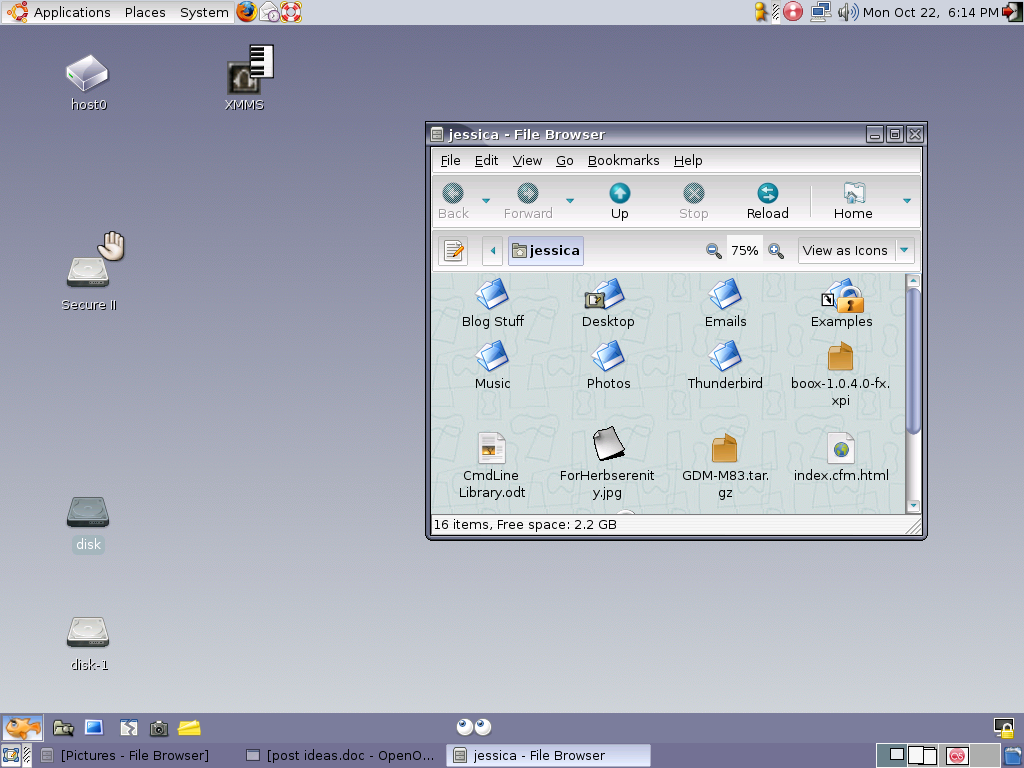
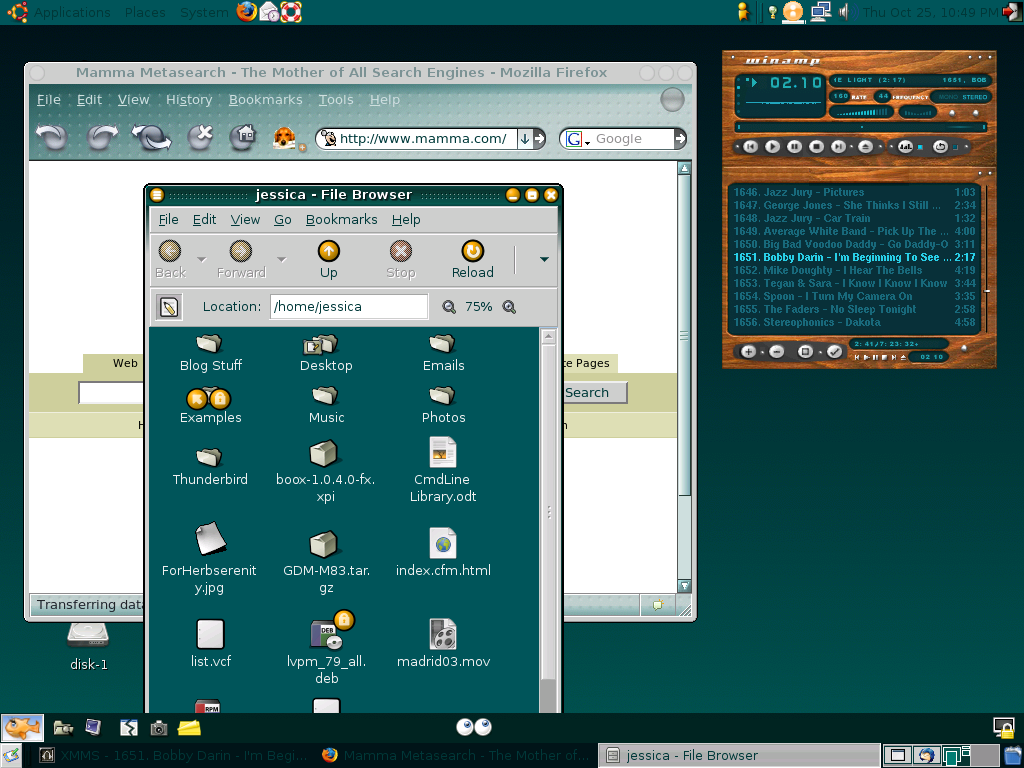
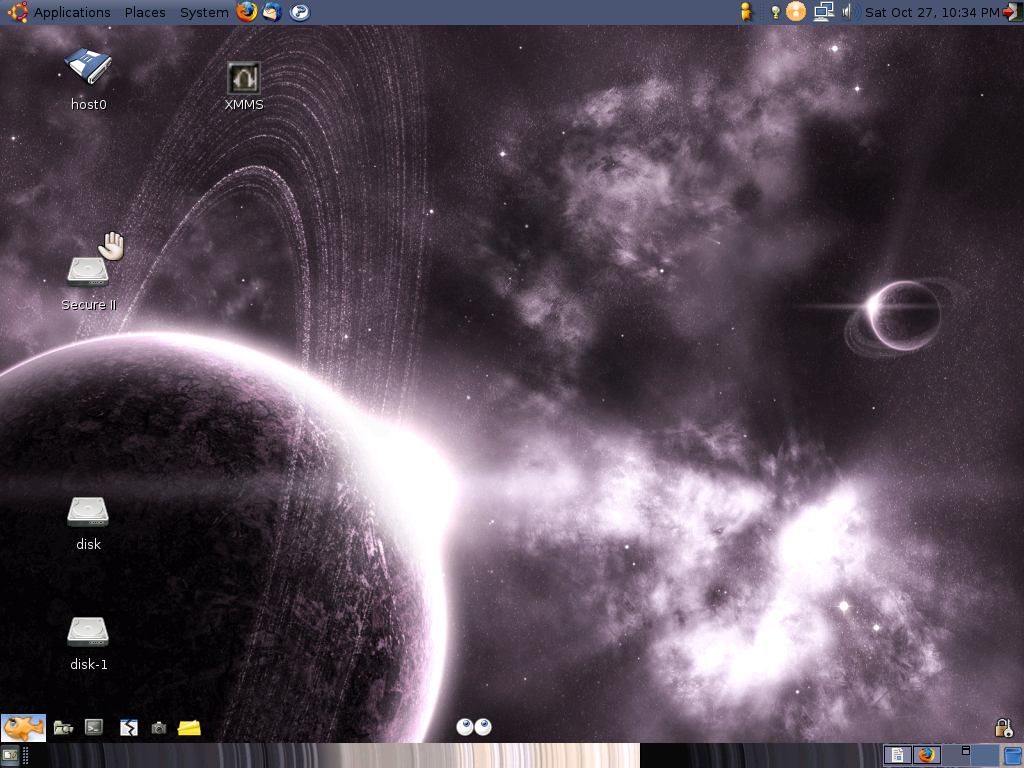
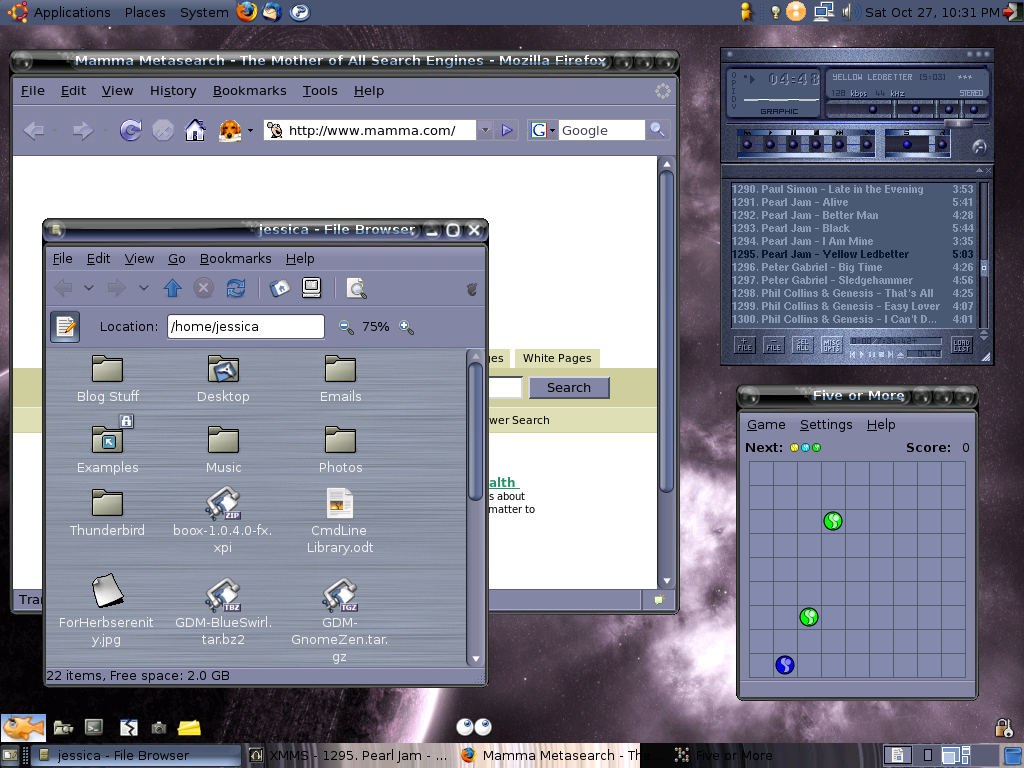
Now that my Ubuntu install is complete and my major glitch corrected, I’ve been tweaking Ubuntu. Between the Ubuntu Help Forums "Tips And Tutorials" and "October 2007 Desktops" threads, in the last week my desktop has undergone an evolution of sorts. Below is information on some handy tricks. They range from the simple to the complicated.
In the full post are the following:
1) Automatically Importing Photos with F-Spot
2) Using WinAmp Skins with XMMS
3) Installing Avant Windows Navigator and Beryl
4) Adding Applications to Start-Up
1) Automatically Importing Photos with F-Spot: The tutorial covers three steps:
(1) Changing your photo import program: Took <30 seconds. Works no problem.
(2) Changing where imported photos are saved: I skipped this step. My photos are saved by category/type on my external HD so I prefer having them in my “Home” folder and re-organizing them after importing.
(3) Ensuring you properly delete files from your memory card: Ubuntu’s default stance isn’t to delete files but to “Move to Trash”. On removable media, it creates a hidden trash folder. Since you can’t see it, you think you’ve gotten rid of files that are still around. Not only did it help with the camera but I finally got rid on the Trash folder on my flash drive.
2) Using Winamp skins for XMMS: I’m glad I found this. The XMMS skins package in the Ubuntu repositories is only OK. It turned out being less work than the tutorial even shows. The only trick is knowing where to put the skin files you download. XMMS does the rest. The folder already exists but it’s hidden so you have to mark “show hidden files” in Nautilus. But then you just download skins from the websites provided and switch out as desired. And there’s tons of skins available. I liked the selections so much I spent several hours Thursday customizing desktop themes to match the new skins. My first attempt at this, didn't go so well. I went from this.....
to this.....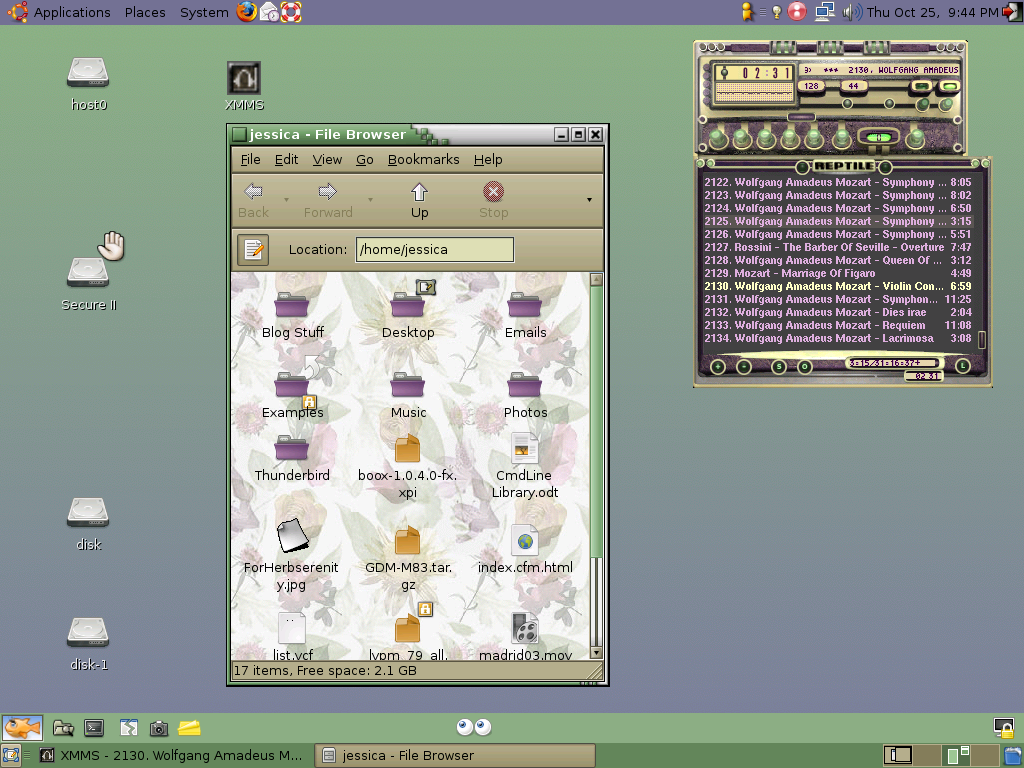
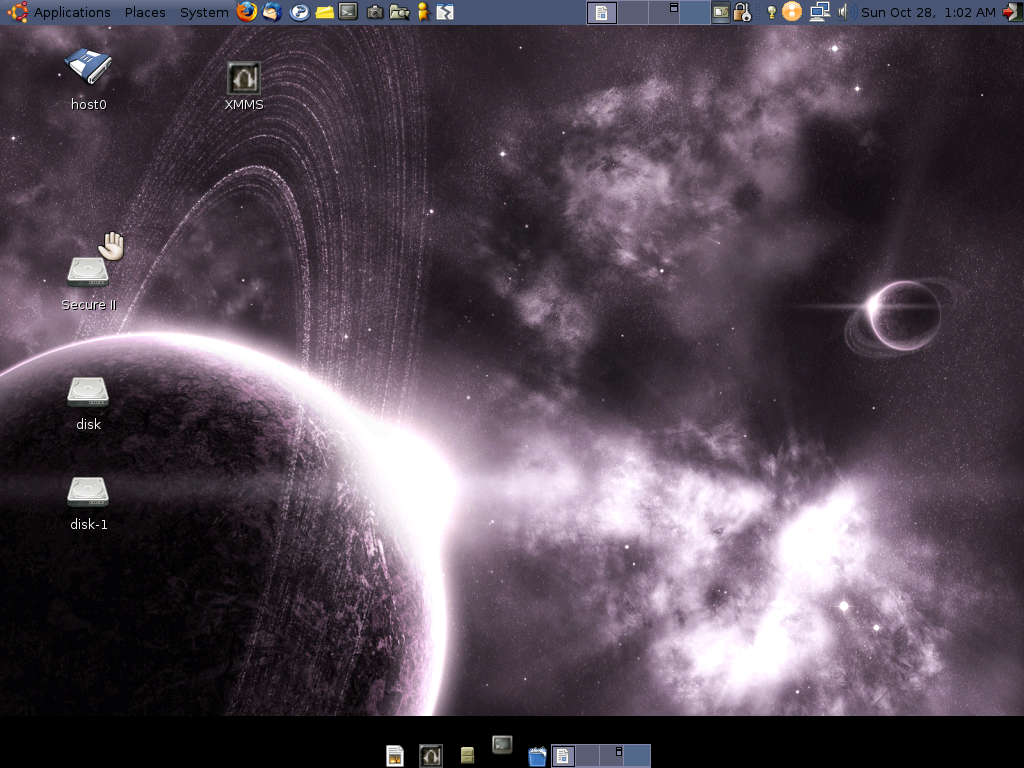
Fortunately, at this point I found out about the October 2007 Desktops thread in the forums. Basically, people post screenshots of their desktop layouts along with info about how they set it up. WOW. After browsing through the thread, I traveled over to Gnome Art and indulged in a downloading frenzy for wallpapers, windows borders, application themes, you name it. At first I attempted to keep the green theme:
But I got over it. After all this downloading, this was my desktop:
Clean (nothing open)
Busy
3) Avant Window Navigator: While flipping through the Desktop thread, I wondered what was the really cool taskbar panel on the bottom of everybody's screens? Thankfully, someone linked to their page explaining how to build desktops. They in turn linked the AWN Forums which in turn linked some detailed instructions on how to install this supremely cool panel.
Looking at these instructions, at first I thought this WAY beyond me. The install involved a LOT of command line stuff (which I'm not that experienced with). But, it was mainly cut-and-paste so I gave it a shot. After two tries, it installed with one problem. There was this unsightly black bar at the bottom of my desktop.
What the hell? The help forum had the answer though. Apparently, you need to install the beryl windows manager & effects package. I'd heard about it but again it seemed a bit out of my current league. Nevertheless, I wanted this taskbar perfect. So, I attempted to install the beryl package from the command line. Unfortunately, this did not make the unsightly black bar go away. After some investigating, I came across these handy instructions for installing Beryl. It turns out, I had only installed the Beryl package but not the other two support packages necessary for beryl to run (beryl-manager and emerald themes). Once I got those and activated Beryl, the ugly black bar went away. After all this tweaking, my final desktop is this:
Clean
Busy
4) Adding Applications to Start-Up: After installing AWN & Beryl, this is really easy. You have to make this modification to open Beryl & AWN each time you log-in. But it takes about ten seconds. All you have to do is go to "System" --> "Preferences" --> "Sessions". There is a "Start-Up Programs" tab, just click "New" to add AWN, Beryl and Beagle (installed with AWN). After that, your new taskbar should appear automatically when you log-in.
PS - Can I just say how awesome Beryl is? I put off installing this because it is a bit above my current proficiency with Ubuntu. And I've only used it a couple hours, but this is a seriously cool feature. I love the semi-transparent windows that wobble when you move them! It's probably going to take me weeks to really figure out how to get the most out of this application but I'm definitely looking forward to the experience.

Tuesday, October 23, 2007
Tuesday Randomness
This miscellaneous ended up quite photo-oriented. No idea how...
1) From the Planetary Society weblog, check out this photo:
That smudge that comes and goes is the Dawn Spacecraft!
2) Browsing the Ubuntu Help forums today, I came across Lightening. It’s a Calendar add-on for Thunderbird! I’ve already installed it and started tweaking. Evolution? What’s that?
3) Everyone on-line is making fun of the CIA's new counter-terrorism logo:
My opinion: MOCKING JUSTIFIED.
Terrorism isn't like smoking people. If ninja terrorists with AK-47s attack, do we just point at the logo? And the ninja terrorists will be all "Oh, this is a non-terrorism zone? Ooops, our bad." and leave?
4) From Germany, room-specific wallpaper.
5) COME ON DEC 1st! Thanks to a ticket giveaway at work I get to see "The Ten Tenors" with a friend. Everyone in office was taking the "STOMP" tickets but I got curious and looked them up on Wikipedia. After work, I checked out some performances on YouTube. (2 videos below the cut)
Largo Al Factotum
AND Great Balls of Fire
Eclectic and fun. COME ON DEC 1st!


 Posts
Posts